How to keep nades.ai open in the Steam overlay
Press Shift+Tab in CS2 to open the Steam overlay browser, then keep nades.ai one click away with a bookmark or as your home page.
On this page
Press Shift+Tab in CS2 and click Web Browser to open a browser in game, no alt-tab. Keep nades.ai one click away and your lineups are right there. There are two ways to set it up, and you only do it once.
Way 1: Bookmark nades.ai in the Steam overlay
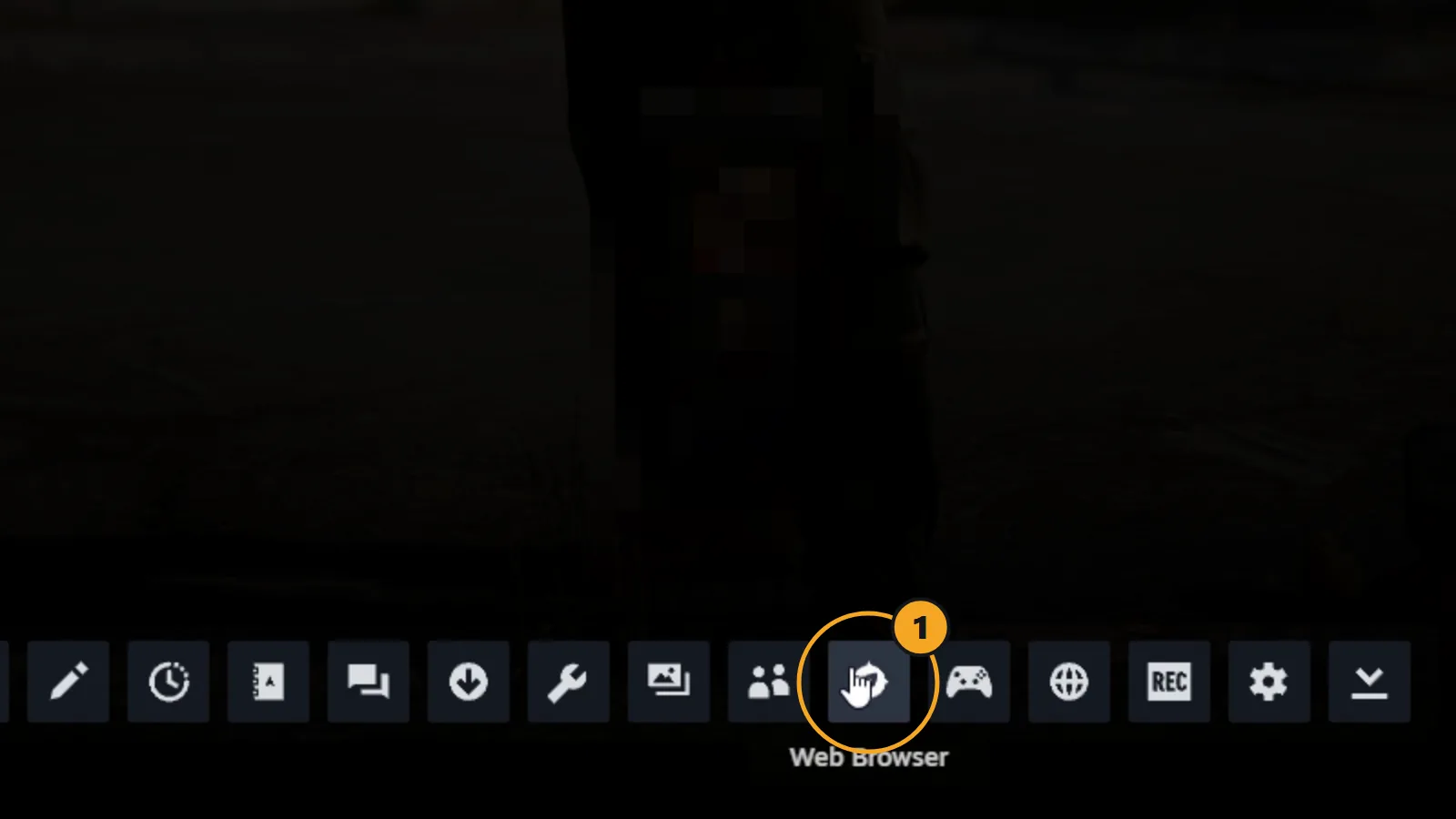
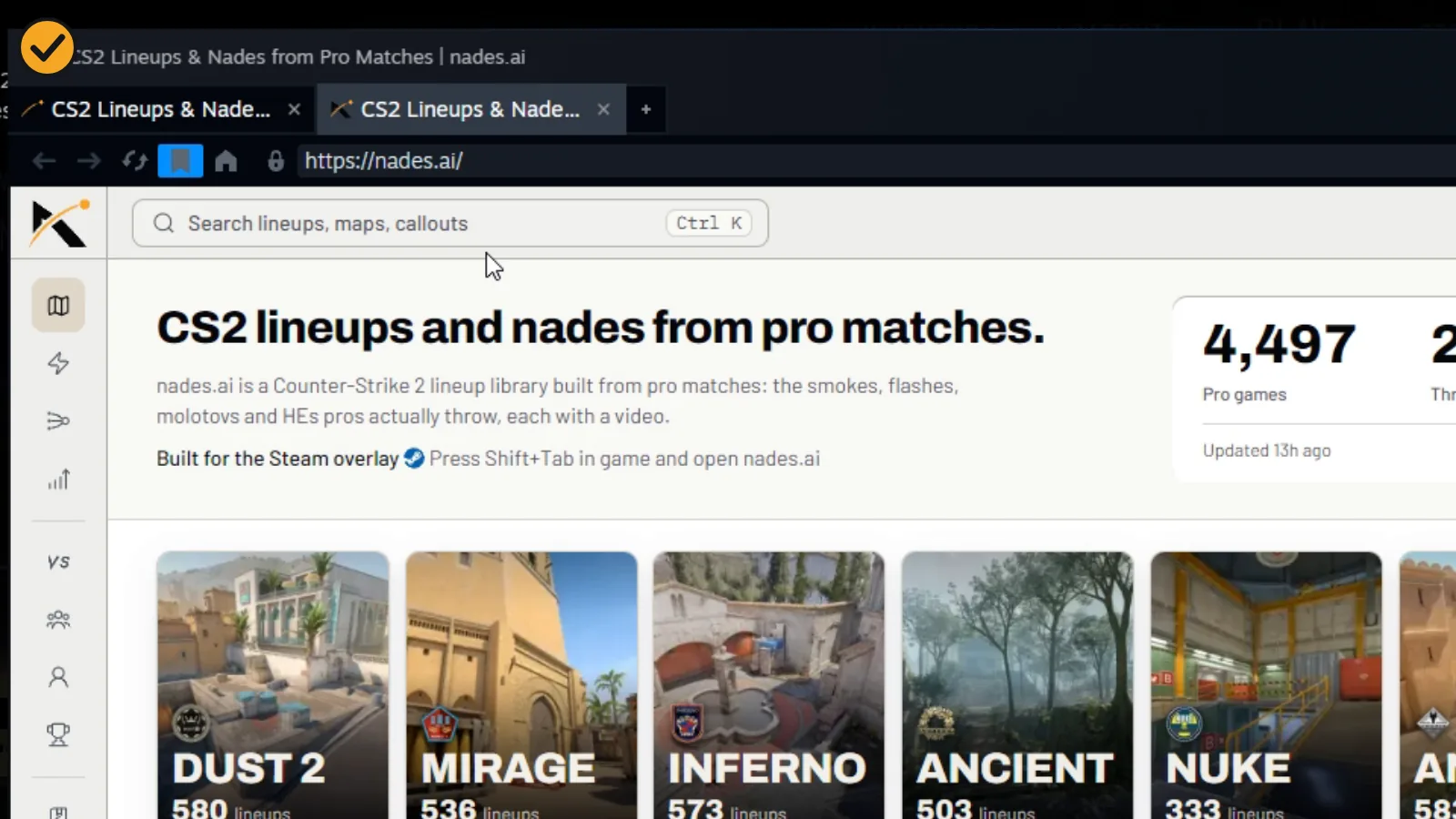
1. In game, press Shift+Tab, then click Web Browser.
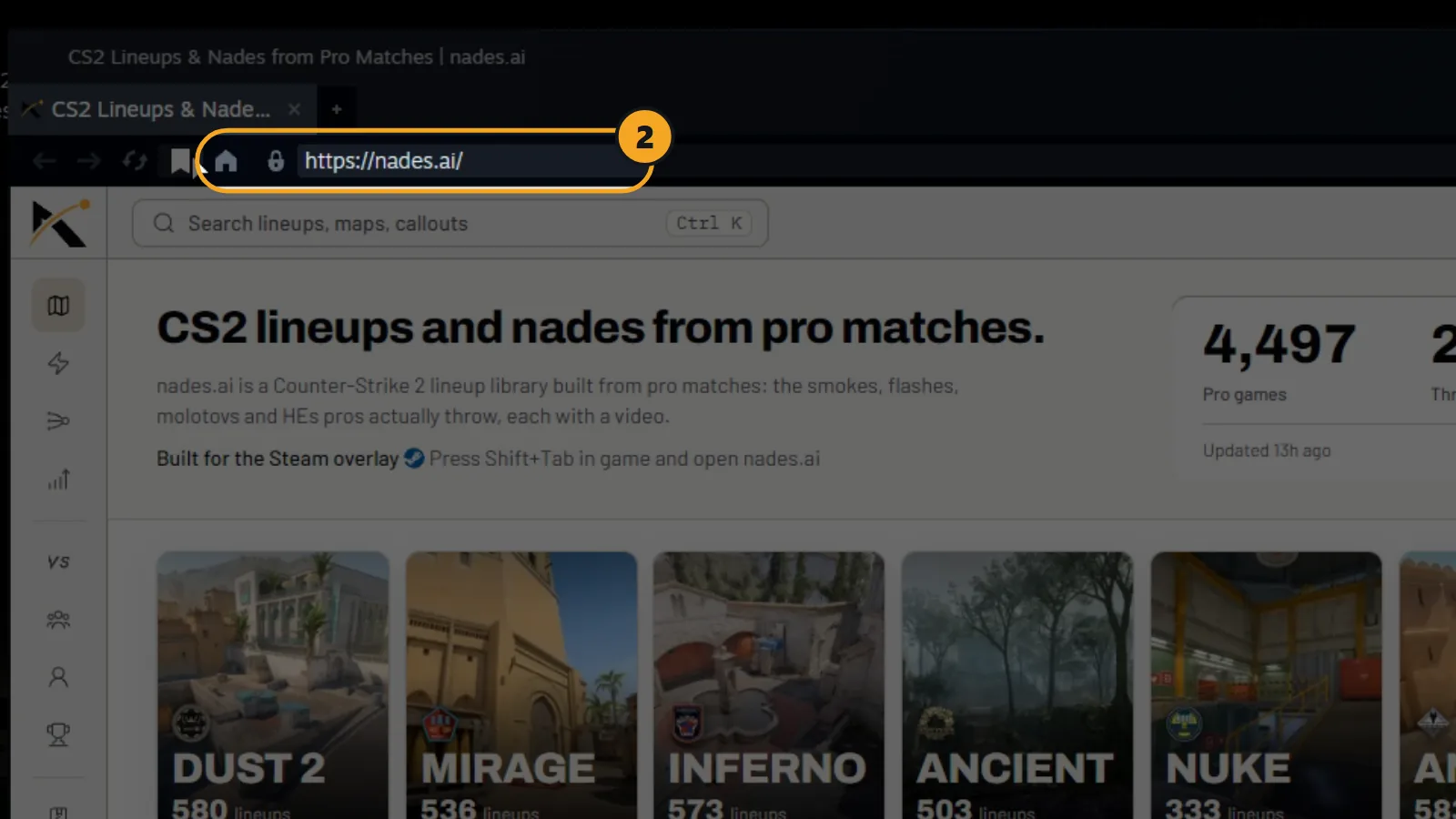
2. Type nades.ai in the address bar and press Enter.
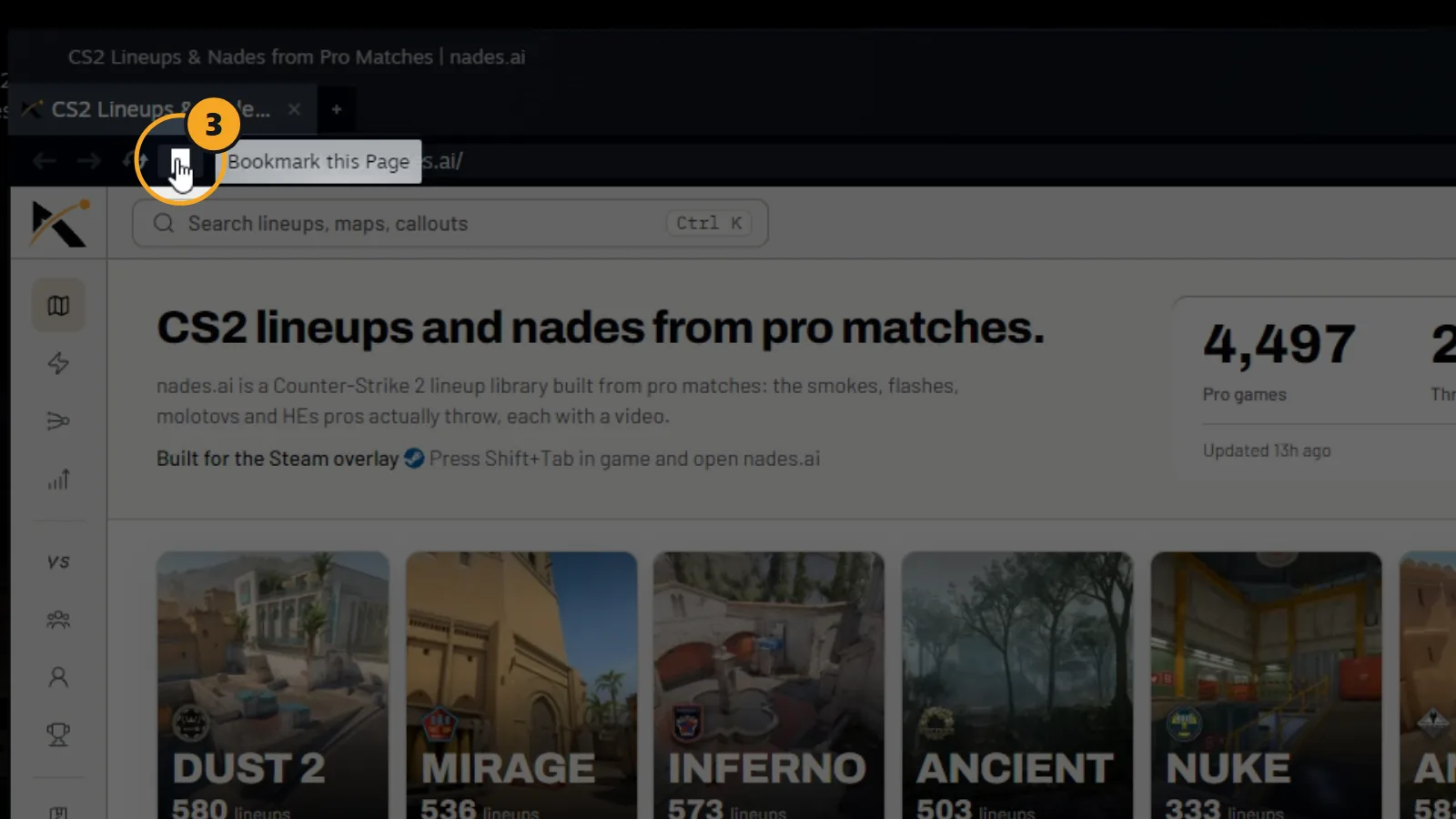
3. Click the bookmark icon next to the home icon. It turns blue.
4. Next time, click the + next to your tabs.
5. Click CS2 Lineups & Nades from Pro Matches in the list. That is your saved nades.ai.
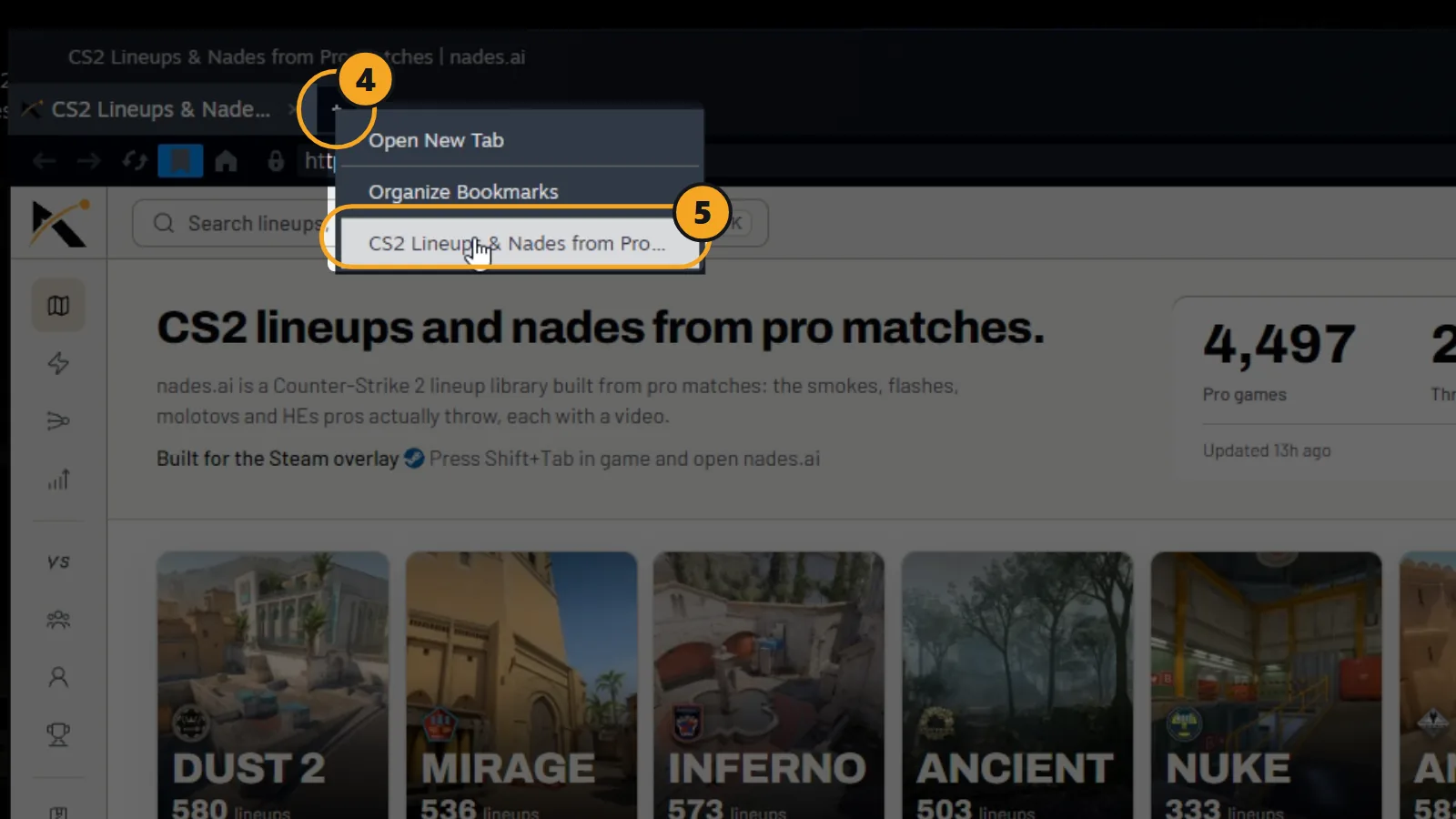
Done. nades.ai opens in a new tab.
Way 2: Make nades.ai your overlay home page
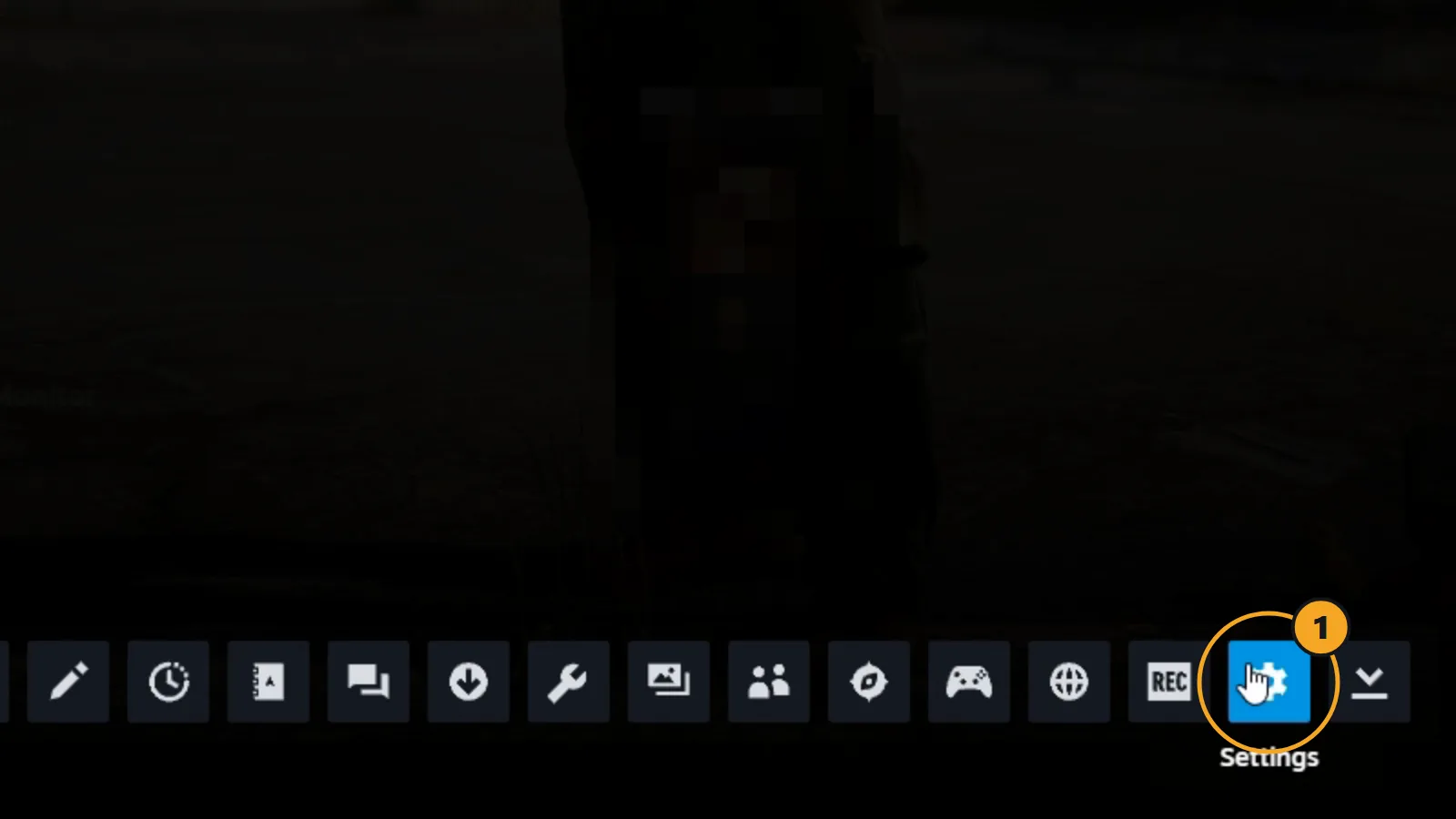
1. In game, press Shift+Tab, then click the gear.
2. In Steam Settings, under In Game, click the box next to Web browser home page and type nades.ai.
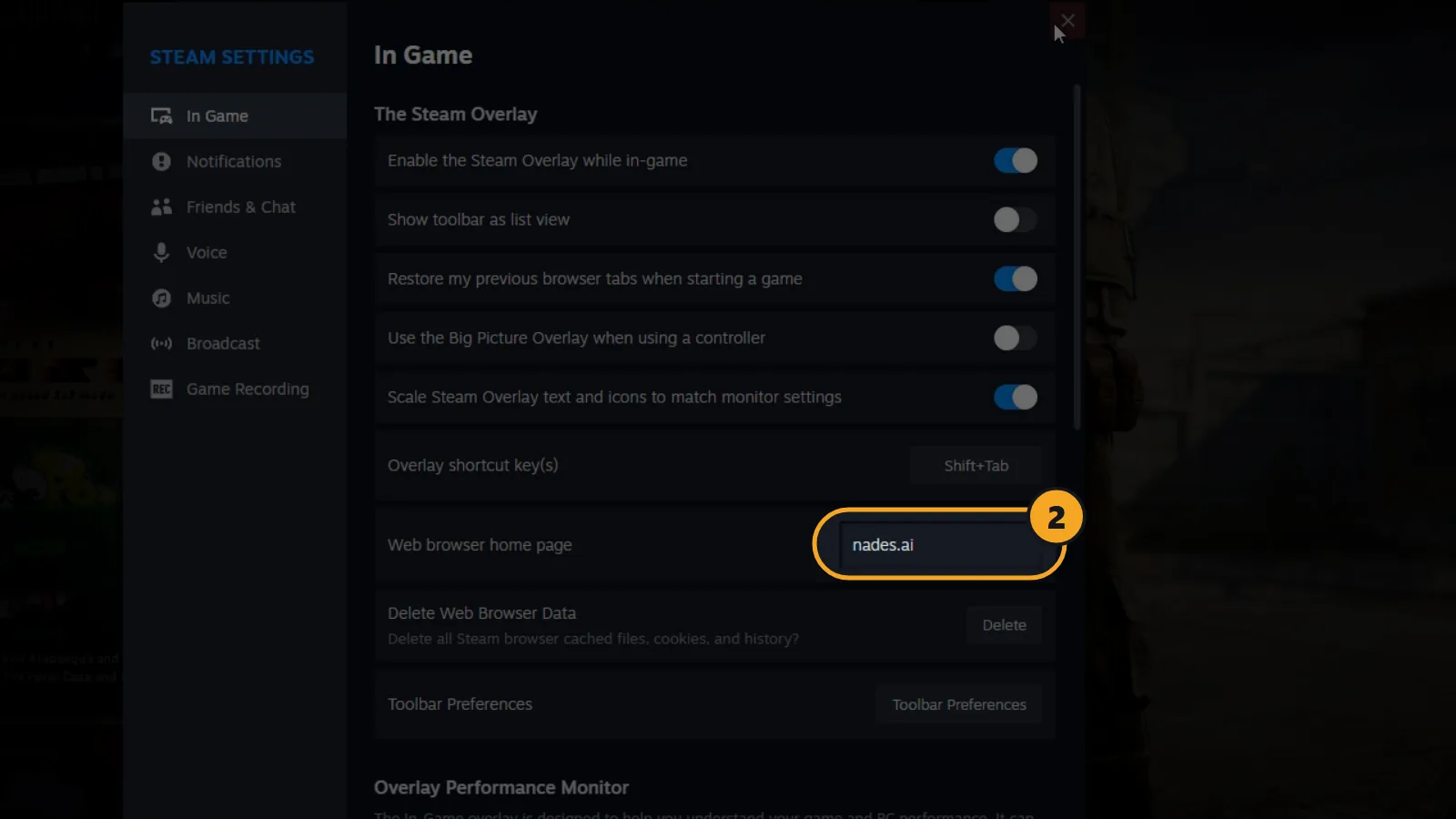
Done. Now the Web Browser button opens nades.ai by itself.
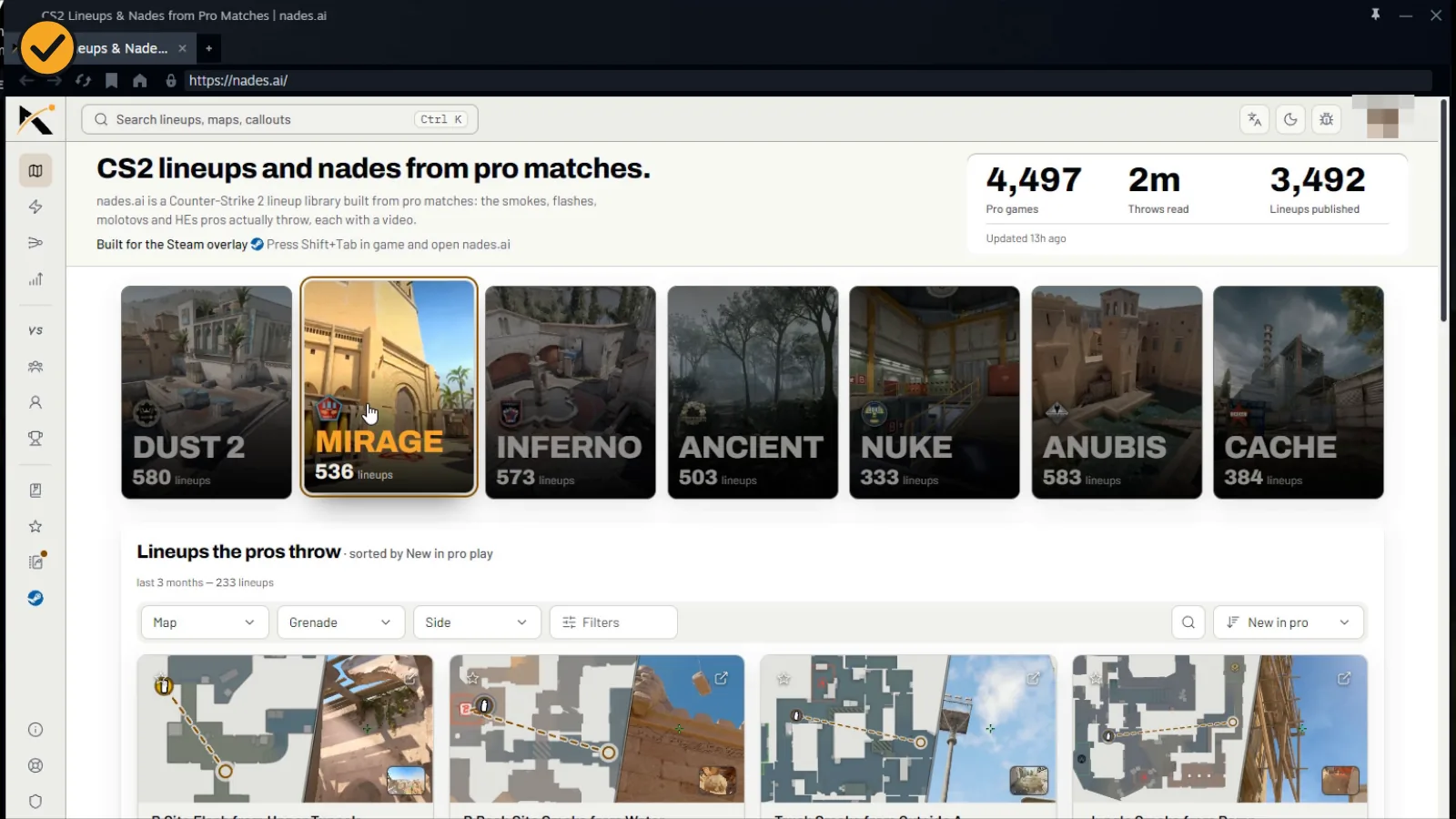
If Steam opens your last tab instead, that's "Restore my previous browser tabs" in the same settings. Click the home icon and you're on nades.ai.
Shift+Tab does nothing in CS2?
Close CS2 and open Steam. Go to Steam, Settings, In Game and turn on Enable the Steam Overlay while in-game. The same page shows your Overlay shortcut key, in case yours is not Shift+Tab. Then start CS2 from your Steam library.
Lineups in game without the browser
You can also ask in Steam chat. Add the nades.ai bot, send it something like mirage smoke window, and it answers with links to the lineups pros throw.
Ready to learn some? Start with Mirage smokes, Dust 2 smokes or Inferno smokes.